Your character’s eyes look flat and cloudy, like there’s a sheet of grey glass in front of them. The iris colour is still there underneath but it’s been washed out, and no amount of eye texture or shader work fixes it. Catchlights look smeared rather than sharp.
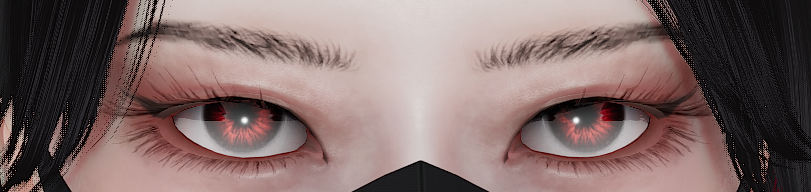
This is not the eye texture, the uncensor, or the character card. It’s a reflection probe.
The fix
Open the Graphics plugin (F5), go to the Probes tab, and set Intensity to 0.
The haze should disappear immediately. That’s the whole fix.
Why it happens
A reflection probe captures the environment around it and feeds that reflection back onto surfaces. Eyes are the most reflective thing on a character, so they take the most of it. When the probe’s intensity is turned up, or it’s capturing a bright or blown-out environment, the eyes get flooded with that reflection and it reads as a flat grey film sitting on top of the iris.
The Intensity slider runs from 0 to 10. Anything above about 1 tends to be visible on eyes; the default is 1.
If you want to keep some reflection
Zero is the quick fix, but it also removes the probe’s contribution everywhere else in the scene, which can flatten metals, glass and wet surfaces. If the rest of your scene was relying on it:
- Try lowering Intensity gradually instead of zeroing it. Somewhere around 0.2 to 0.5 often keeps the scene’s reflections while pulling the film off the eyes.
- Check the probe’s Box Size and Box Offset. If the probe volume is small and centred near the character’s head, the eyes get a much stronger dose than the rest of the scene. Growing the volume or moving it away spreads the effect out.
- Check what the probe is actually capturing. A probe sitting inside a bright skybox or a blown-out light will push far more onto the eyes than one in a normally-lit room.
If it’s still there
If Intensity is at 0 and the eyes are still hazy, it isn’t the probe:
| Also check | Where |
|---|---|
| Ambient light flooding the scene | Graphics (F5) > Environment, lower ambient intensity |
| The eye material’s own shader | Material Editor on the eye renderer, see changing a shader |
| A bloom or glow effect blowing out bright pixels | Graphics (F5), lower bloom intensity or threshold |
| Something else in the Graphics menu behaving oddly | Fix: the Graphics menu won’t open or broke |
For the full tour of what everything in that menu does, see lighting with the Graphics plugin.